How to Turn a Video Into an iPhone Live Wallpaper: Use intoLive's Live Wallpaper Mode (Tested on iPhone 16)
An iPhone 16 walkthrough: turn an MP4 into a Live Photo lock-screen wallpaper with intoLive’s Live Wallpaper mode — and fix the greyed-out toggle and the iOS “Motion Not Available” error.
Share this article
Tested on one iPhone 16 running the latest public iOS (iOS 26) on June 10, 2026. Apple supports Live Photo Lock Screen wallpapers on iOS 17 or later; we did not test iOS 17, iOS 18, or other devices, so treat this as a tested workflow, not a universal guarantee. Disclosure: the test clip was made on aiwallpaper.me, our own AI wallpaper generator.
Quick answer
- An MP4 by itself cannot be set as an iPhone live wallpaper. iOS only accepts a Live Photo in the wallpaper picker.
- Live Photo Lock Screen wallpapers work on iOS 17 or later (Apple Support). iOS 16 dropped the feature (intoLive).
- In intoLive, tap the [Live Wallpaper] button on the main page. If you start from [New Project] instead, the result may not work as a wallpaper (intoLive).
- Keep the clip to about 1–2 seconds — that is Apple's policy since iOS 17, per intoLive (intoLive).
- If the Live toggle is greyed out, turn off Low Power Mode and Reduce Motion.
Test setup
- Device: iPhone 16
- iOS: latest public release (iOS 26) as of 2026-06-10 — exact point build not recorded
- App: intoLive (free tier), by imgbase inc., App Store ID 1061859052
- Source video: 9:16 MP4 from aiwallpaper.me; exported from intoLive at 1080×1920, trimmed to ~1–2 seconds
- Working path: intoLive [Live Wallpaper] button
- Failing path: intoLive [New Project] → Save Live Photo
- Failure symptom: Live toggle greyed out / not selectable in the wallpaper picker
- Device settings: Low Power Mode off, Reduce Motion off
I only had one device on hand, so a few fields (exact iOS point build, source codec/fps/file size) are not recorded rather than guessed.
The steps that worked
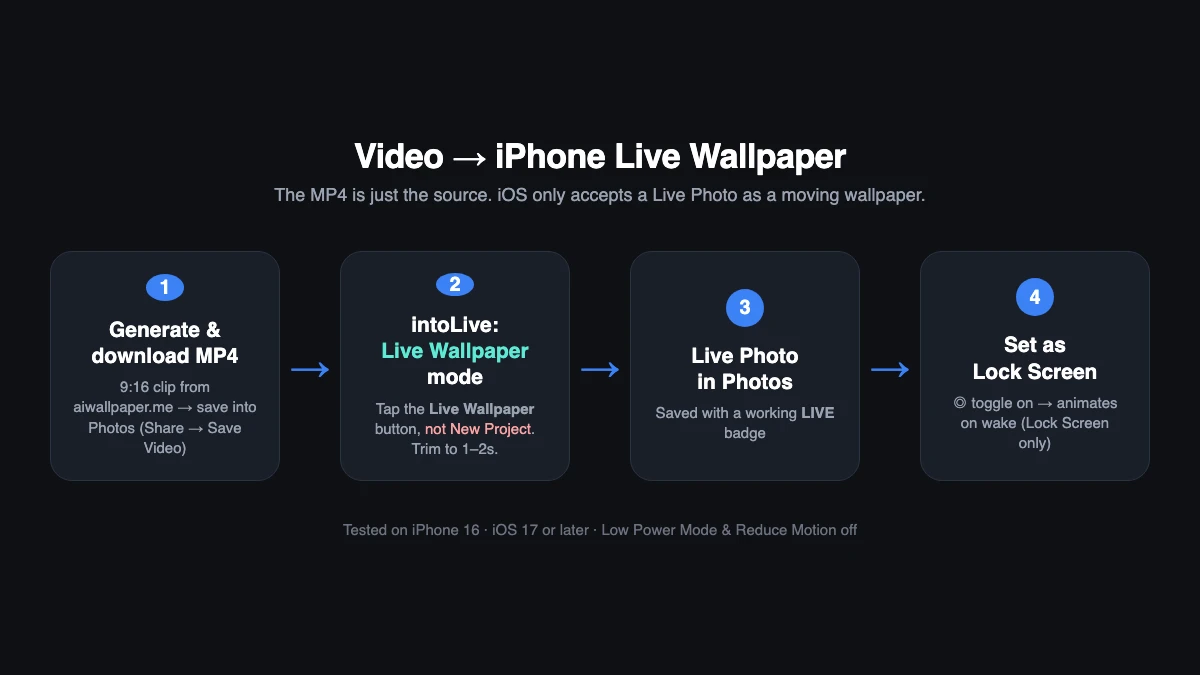 The whole flow at a glance — the only step that trips people up is the export mode in step 2.
- Make the wallpaper. On aiwallpaper.me I generated a 9:16 live wallpaper. The site outputs an MP4/WebM (up to 4K) — it doesn't install anything on the phone.
- Get the MP4 into Photos. In my test, tapping the download link in Safari opened the MP4 inline instead of saving it. Don't rely on a browser download alone on iPhone — tap the screen, tap Share (□↑), then Save Video to put it in Photos. If it only offers Save to Files, open the Files app, long-press the MP4, and Save Video to move it into Photos.
- Convert in intoLive — from the [Live Wallpaper] button. This is the step that decides everything (next section).
- Set it. Settings → Wallpaper → Add New Wallpaper → Photos → pick the Live Photo → confirm the Live toggle (the two-circle icon, bottom-left) is on → Set as Wallpaper Pair.
- See it move. Lock the phone and wake it; the Lock Screen plays the motion. The Home Screen does not animate — that's expected.
The one export mode that mattered
intoLive has two ways out, and they are not equivalent.
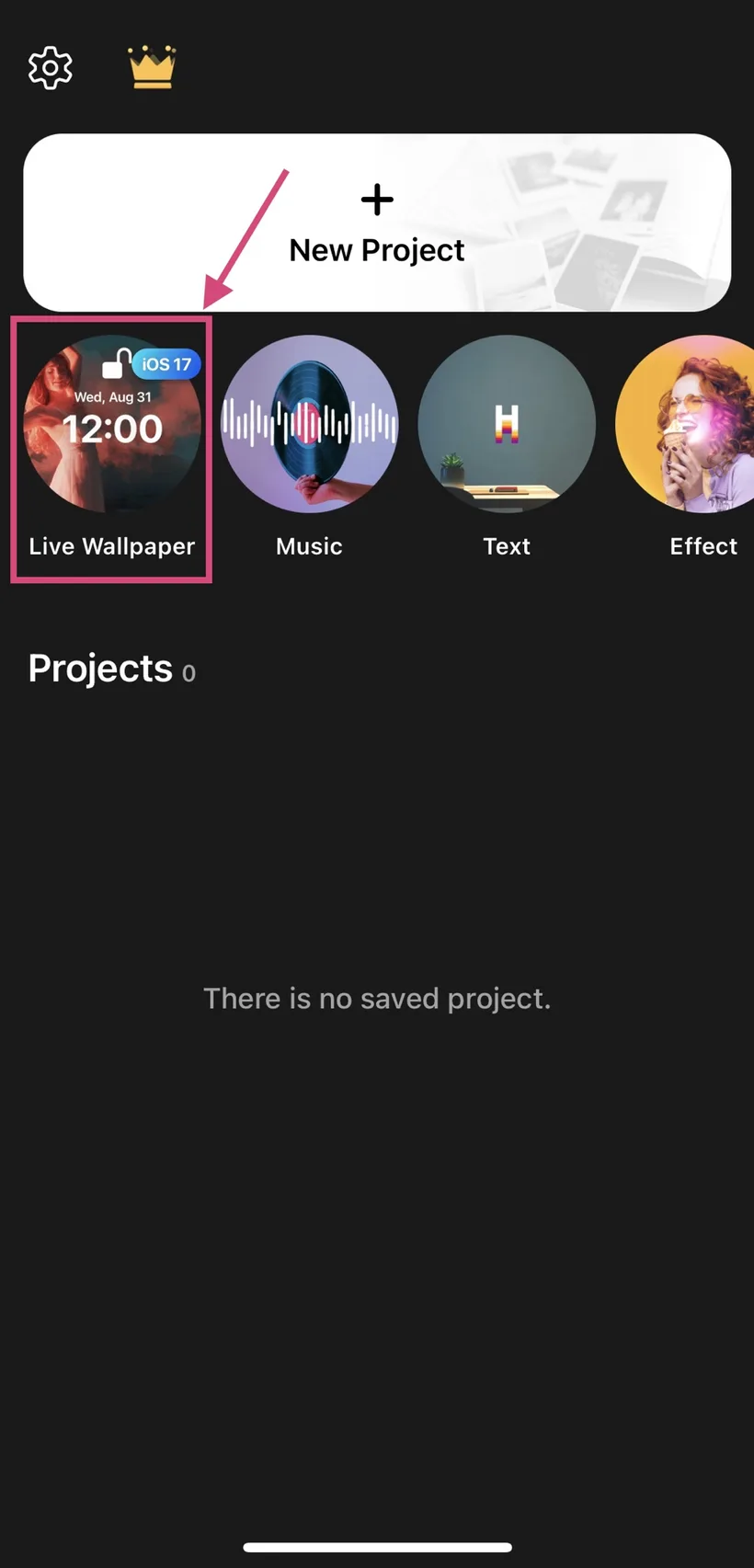 From intoLive's help guide: start from the Live Wallpaper button — not New Project.
- Starting from [New Project], editing, then Save Live Photo gave me a Live Photo that played in the camera roll. But in Settings → Wallpaper, the wallpaper picker did not expose Live Motion for that export — the Live toggle was greyed out and untappable.
- Using the [Live Wallpaper] button on intoLive's main page, importing the same MP4, trimming to ~1–2 seconds, and exporting produced a Live Photo whose toggle was active. The Lock Screen animated.
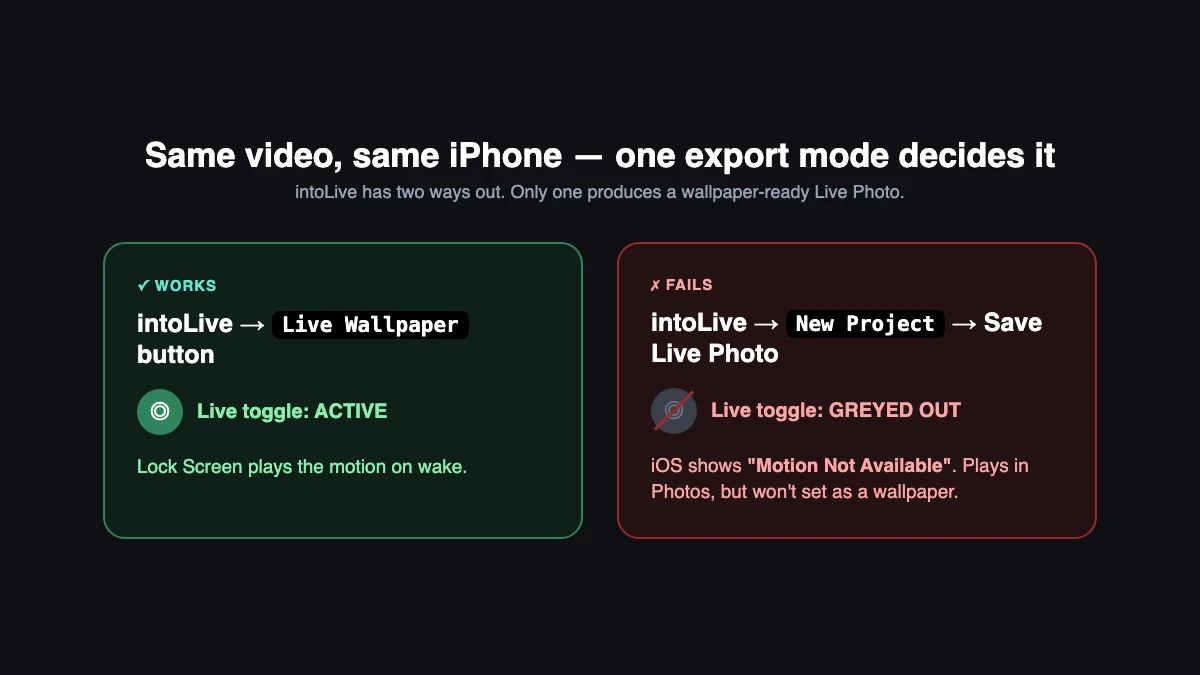 Same video, same phone — only the export mode changed.
This matches intoLive's own guide: create Live Wallpapers from the [Live Wallpaper] entry point, not from [New Project] (intoLive).
One more data point: a Live Photo shot with the iPhone's own camera set as a moving wallpaper without trouble. Run that same camera Live Photo through intoLive's New Project export and its wallpaper toggle greys out too. So the breakage is in the generic re-export, not in your video or its resolution — the export I tried was already 1080×1920, a safe 9:16 size, but resolution alone does not decide whether iOS accepts the Live Photo as a moving wallpaper.
If it still won't move
- Low Power Mode — when on, the Live Photo motion icon doesn't appear; intoLive calls this out too. Turn it off (the battery icon shouldn't be yellow).
- Reduce Motion — Settings → Accessibility → Motion → Reduce Motion. Apple's onscreen-motion setting affects wallpaper and app animations (Apple Support); I kept it off. I can't say it always causes failure, only that it's worth ruling out.
- Motion that's too busy — when iOS rejects the motion, the wallpaper editor shows "Motion Not Available — Motion from this Live Photo is not supported as a wallpaper." Even ordinary Live Photos hit this sometimes. Shorter clips with simpler, calmer motion are accepted more reliably than long, full-frame ones.
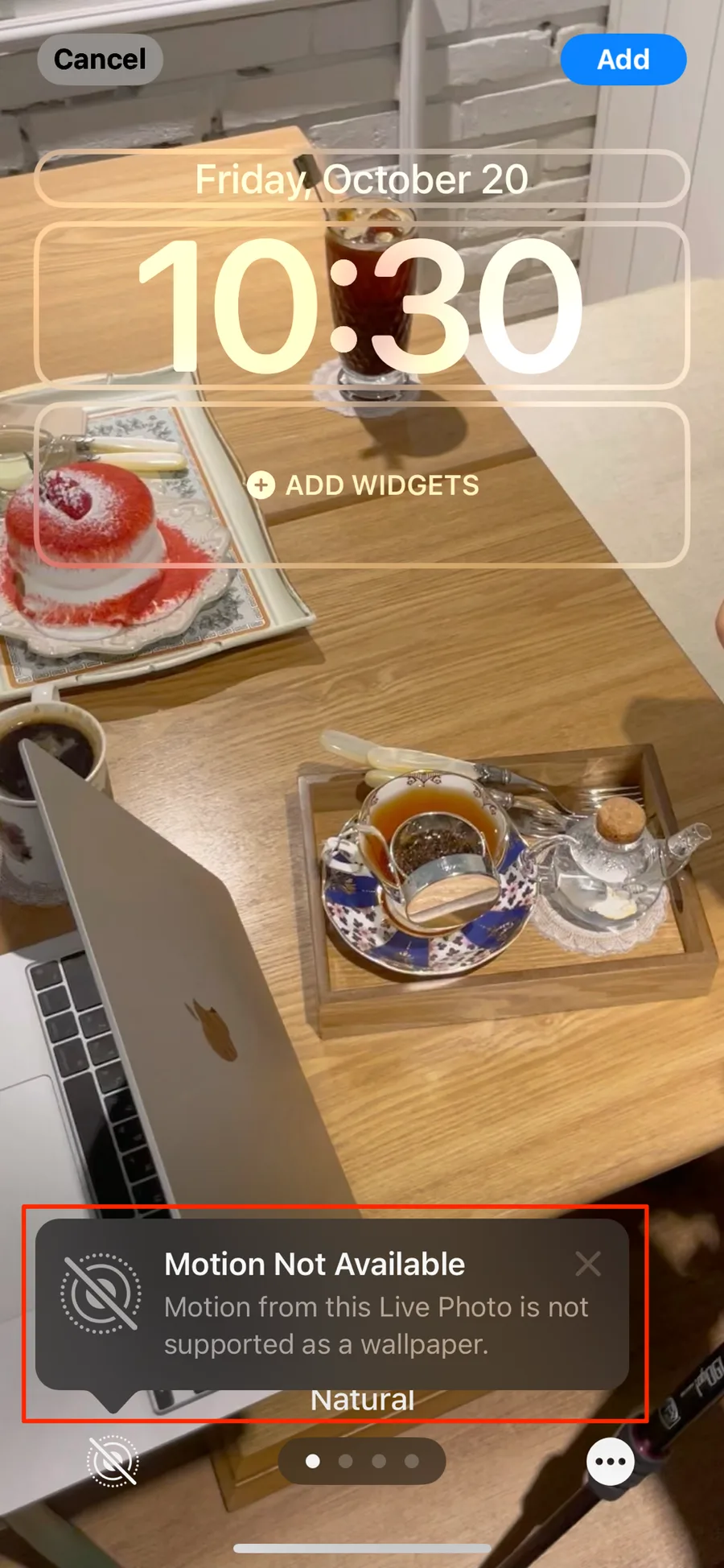 From intoLive's help guide: the iOS "Motion Not Available" message — the same block that shows up as a greyed-out Live toggle.
Why a website alone can't finish the job
A web page can generate or deliver the raw Live Photo components, but it cannot directly install a wallpaper-ready Live Photo into the iOS Photos library. Adding a Live Photo to Photos uses Apple's PHAssetCreationRequest, which runs inside a photo-library change block in a native app. Apple's web tool, LivePhotosKit JS, is for playing Live Photos on the web, not saving them. In practice the final save and setup step needs an app, a Shortcut, or the system Share/Save flow. Be careful with pages promising a one-tap, no-app conversion: that last step is a third-party tool, not an Apple capability.
Safety note: avoid uploading private videos to unknown online converters, and review any Shortcut's source before installing it.
What I did not test
- Only one iPhone 16 on one iOS build, on 2026-06-10. I did not test iOS 17, iOS 18, or other models.
- Only intoLive (free). WidgetClub, VideoToLive, and the "Save Live Photo" Shortcut may behave differently and are unverified here.
- intoLive's free tier adds a small watermark; it did not affect whether the wallpaper would set.
If you only want a still high-resolution wallpaper, skip all of this — the Live Photo workflow is only for the moving Lock Screen. The 9:16 source comes from the generator on aiwallpaper.me, and the MP4-to-iPhone-Live-Photo guide covers the device steps in reference form.
FAQ
Can I set an MP4 directly as a live wallpaper? No. The MP4 is the source; iOS only accepts a Live Photo in the wallpaper picker, and the conversion happens on the phone in an app.
Does iOS 16 support Live Photo wallpapers? No. The feature returned in iOS 17; iOS 16 removed it (intoLive).
How long should the clip be? About 1–2 seconds. Since iOS 17, Apple's policy caps Live Wallpaper duration at 1–2 seconds, per intoLive (intoLive).
Why does my Live Photo play in Photos but grey out in the wallpaper screen? It was likely saved from intoLive's New Project export. Redo it from the [Live Wallpaper] button, and check that Low Power Mode and Reduce Motion are off.
Why does the motion icon disappear? Low Power Mode hides it. Turn Low Power Mode off and try again.
Will this work on my iPhone 13 or iPhone 15? I only confirmed it on an iPhone 16. The same intoLive flow generally applies on iOS 17 or later, but iOS versions differ and some users report failures, so expect to adjust clip length and the two settings above.
Bottom line
On my iPhone 16, an AI-generated MP4 became a working Lock Screen Live Photo wallpaper only when I exported it through intoLive's [Live Wallpaper] mode. The [New Project] → Save Live Photo path produced a Live Photo that played in Photos but did not expose Live Motion in the wallpaper picker. For the most reliable result, use iOS 17 or later, trim the clip to about 1–2 seconds, keep the motion simple, and turn off Low Power Mode. This was tested on one device and one iOS build, so treat it as a tested workflow, not a universal guarantee — Apple changes the wallpaper rules between releases, and I don't yet know how consistently the same export behaves across iOS 17 and other models.